

How to Accept Admission on JAMB CAPS 2027
If you registered for the 2027 Joint Admissions and Matriculation Board (JAMB) examination and are hoping to secure admission into your preferred university, polytechnic or college of education, understanding how to use the JAMB Central Admissions Processing System (CAPS) is very important. One of the most important steps you will need to take after receiving an admission offer is knowing how to accept or reject the admission through the JAMB CAPS portal.
For many candidates, receiving an admission offer is an exciting moment, especially after months of preparing for the UTME, checking admission requirements and waiting for their preferred institution to release its admission list. However, getting an admission offer is not always the final step. You must also understand how to confirm your admission status and respond appropriately through the official JAMB platform.
The JAMB CAPS portal allows candidates to check their admission status and respond to admission offers. If an institution offers you admission, you may be required to accept or reject the offer. Accepting an admission offer indicates that you are willing to take up the admission, while rejecting it means you do not wish to proceed with that particular offer.
If you are among the candidates preparing for the 2027 admission exercise, it is important to understand that you should not rush into making a decision without checking the institution and course offered to you. Confirm that the admission details are correct and that you are comfortable with the programme before accepting the offer. You should also use the official JAMB portal rather than relying on unofficial websites or individuals claiming they can process admission on your behalf.
In this guide, we will explain how to accept or reject an admission offer on JAMB CAPS in 2027, the steps to follow when checking your admission status, and what to do if you cannot see the accept or reject admission option on your dashboard. We will also address some common questions candidates may have about the admission process.
Whether you are applying to a university, polytechnic or college of education, understanding how JAMB CAPS works can help you avoid mistakes during the admission process. Read this guide carefully and follow the instructions provided when the 2027 admission exercise officially begins.
How to Accept Admission on JAMB CAPS 2027
If you have received an admission offer from your preferred institution, follow these steps to accept it through the JAMB CAPS portal.
-
Visit the official JAMB e-Facility portal.
-
Log in using the email address and password associated with your JAMB profile.
-
Navigate to your candidate dashboard.
-
Click on Check Admission Status.
-
Select your examination year, which should be 2027, and enter your JAMB registration number if requested.
-
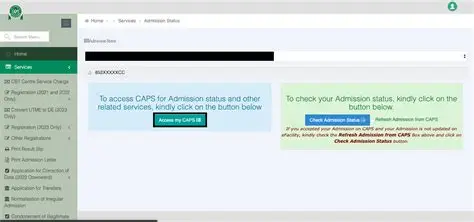
Click on Access my CAPS to open your CAPS dashboard.
-
Select Admission Status from the available menu.
-
Check the admission offer displayed on your screen.
-
If you are satisfied with the institution and course offered, click Accept Admission.
-
Follow the confirmation instructions displayed on the portal to complete the process.
After accepting your admission, check your CAPS dashboard again to confirm that your response has been successfully recorded.
The JAMB CAPS platform is the official system used to manage admission offers into Nigerian tertiary institutions.
Joint Admissions and Matriculation Board+1
How to Reject Admission on JAMB CAPS 2027
If you receive an admission offer but do not want to accept it, JAMB CAPS also provides an option to reject the offer.
Here is how to reject an admission offer:
-
Visit the JAMB e-Facility portal.
-
Log in using your registered email address and password.
-
Click on Check Admission Status.
-
Select your examination year and enter your JAMB registration number where required.
-
Click Access my CAPS.
-
Open the Admission Status section.
-
Review the admission offer displayed.
-
Click Reject Admission if you do not want the offered admission.
-
Follow any confirmation instructions displayed on your screen.
Before rejecting an admission offer, think carefully about your decision. Do not reject an offer simply because you are waiting for another institution unless you understand the possible consequences.
Rejecting an offer does not guarantee that another institution will offer you admission. Your chances will still depend on the admission requirements, available spaces and the institution’s selection process.
How to Accept or Reject JAMB CAPS Admission Using a Mobile Phone
You do not necessarily need a laptop or desktop computer to access your JAMB CAPS account. You can use a smartphone, although some candidates experience difficulties viewing all the available options on the mobile version of the portal.
If you are using Google Chrome on your Android phone, follow these instructions:
-
Open Google Chrome on your phone.
-
Visit the official JAMB e-Facility website.
-
Log in to your JAMB profile.
-
Tap the three-dot menu at the top-right corner of your browser.
-
Select Desktop site.
-
Allow the page to reload in desktop mode.
-
Navigate to Check Admission Status and access CAPS.
-
Open Admission Status to view your offer.
-
Select Accept Admission or Reject Admission, depending on your decision.
Using desktop mode can make it easier to access the full CAPS dashboard when some options are missing from the mobile display.
What Should You Do After Accepting Admission on JAMB CAPS?
After successfully accepting your admission offer, there are other important steps you should take to prepare for registration at your institution.
1. Confirm Your Admission Status
Log back into your JAMB CAPS account to ensure that your admission acceptance has been recorded correctly.
2. Print Your JAMB Admission Letter
Once the necessary admission records are available, visit the JAMB e-Facility portal to access the admission letter printing service. Your admission letter is an important document that may be required during school registration and clearance.
3. Check Your Institution’s Admission Portal
Visit your institution’s official website to find out whether there are additional acceptance fees, registration requirements or clearance procedures.
4. Prepare Your Admission Documents
Keep your relevant documents ready, including your JAMB result slip, O’Level result, admission letter and other documents requested by your institution.
Why Is My JAMB CAPS Not Showing Accept or Reject Admission?
Some candidates may log into their JAMB CAPS accounts and discover that the Accept Admission and Reject Admission options are not available.
This does not necessarily mean that something is wrong with your account.
Here are some possible reasons:
-
No admission offer yet: If your institution has not offered you admission, the accept and reject options may remain inactive.
-
Admission is still processing: Your admission may still be undergoing institutional or JAMB approval.
-
Mobile browser problem: Some CAPS features may not display properly on mobile browsers. Try switching to desktop mode.
-
Institution has not uploaded its admission list: Your institution may still be processing or submitting its admission recommendations.
-
O’Level result issues: Check whether your required O’Level results have been uploaded and properly reflected on your JAMB profile.
If the problem continues, contact your institution’s admission office or submit an enquiry through the official JAMB support platform.JAMB Policy and CAPS
JAMB admission policy states that all admissions would be made online through the Central Admissions Processing System (CAPS). Consequently, all candidates seeking admission into Universities, Polytechnics, Colleges of Education, and other tertiary institutions in Nigeria for the 2027 academic session are advised to visit the JAMB CAPS portal to check their admission status and also indicate the acceptance or rejection of their admission.
The JAMB Central Admissions Processing System (CAPS):
- streamlines the Admissions Process.
- addresses the challenges associated with the manual approach.
- restores the autonomy of the tertiary institutions concerning admissions
- makes candidates stay focused.
- empowers them with information on available choices of institutions and programmes.
- expands admission opportunities.
- eliminates multiple admissions.
- provides easily retrievable data for decision-making and research on the Education Sector in the country.
Some institutions may not publish the list of candidates admitted into their various programmes on their own portal or notice board. So, admission seekers are advised to check JAMB CAPS to track their admission status continually.
PLEASE NOTE: Once you accept the admission, your admission quest is over as you will no longer be available for other schools’ admission consideration. On the other hand, if you reject the admission, you become available to other schools with free admission slots for admission consideration.
How to ACCEPT or REJECT Admission on JAMB CAPS Using PC
- Go to the JAMB E-facility portal at https://portal.jamb.gov.ng/efacility/.
- Supply your Email Address and Password in the required columns and then log in.
- Then locate and click on Check Admission Status.
- Select your examination year, supply your JAMB registration number in the required column, and click on the ‘Access my CAPS’ button.
- Select ‘Admission Status’ on the left panel.
- Locate and click on the ‘Search’ button in front of your JAMB Registration Number to load your profile.
- You can now accept/reject your admission offer under ‘Admission Profile’.
Note:
If you have been offered admission, the Accept Admission and Reject Admission buttons will be active (clickable), as highlighted in Red below.
If you have NOT been offered admission yet, the Accepted Admission and Reject Admission buttons will be inactive (not clickable and greyed out) as highlighted in Red below.
Admission Status details (highlighted in blue) may differ.
If not yet offered admission, please keep checking.
How to ACCEPT or REJECT Admission on JAMB CAPS Using Mobile Device
Note: If you are using a phone, you may not see the option to check your Admission Status on CAPS. Most phone users may only see the welcome message. The caps page shows only welcome because it requires you to use desktop mode to view the complete page.
This is why the Chrome browser is recommended if you are using a phone. All you need to do is go to the Chrome option and choose request desktop site for the complete page to display as explained below:
- Go to the JAMB E-facility portal at https://portal.jamb.gov.ng/efacility/.
- Supply your Email Address and Password in the required columns and then log in.
- Then locate and click on ‘Check Admission Status’.
- Select your examination year, supply your JAMB registration number in the required column, and click on the ‘Access my CAPS’ button.
- You will be welcomed with a white screen like this: (you can click on the image for a better view)
- Select the three-dotted line at the top right corner of your browser ( i.e. ⋮) and then tick ‘Desktop site‘. You can click on the image for a better view.
- Select ‘Admission Status‘ on the left panel.
- Locate and click on the ‘Search’ button in front of your JAMB Registration Number to load your profile.
- You can now accept/reject your admission offer under ‘Admission Profile’.
NB: Acceptance/rejection of admission offer is free!
Candidates who have been offered admission on JAMB CAPS are to equally print their admission letter after accepting the admission. They will likely need this during clearance and registration in the school where they have been admitted.
How to Accept or Reject Program / Course Transfer on JAMB CAPS
- Go to the JAMB E-facility portal at https://portal.jamb.gov.ng/efacility/.
- Supply your Email Address and Password in the required columns and then log in.
- Then locate and click on Check Admission Status.
- Select your examination year, supply your JAMB registration number in the required column, and click on the ‘Access my CAPS’ button.
- Click ‘Transfer Approval‘.
- Finally, click the ‘Accept‘ or ‘Reject‘ button to accept/reject the course transfer.
Information for those who are yet to be admitted on JAMB CAPS
- Candidates who have not been offered admission should closely monitor their admission through JAMB CAPS.
- Candidates who used “awaiting result” during their registration are to upload their O’Level result on the JAMB portal so that their institution of choice will process their admission.
About JAMB CAPS
The Joint Admission and Matriculation Board (JAMB) created the Central Admission Processing System (CAPS) platform to automate the Admissions Process in the tertiary institutions in Nigeria. It also ensures quality control, transparency, and credibility of the admission process.
The Central Admission Processing System (CAPS) is expected to make provision for a ‘marketplace’ in the JAMB portal where institutions can go and request for students in Nigeria who score their cut-off points.
The system is such that institutions can only admit those who meet their cut off points. If a candidate fails to meet the cut off mark, that student would certainly be denied admission irrespective of the candidate’s connection.
CAPS not only automates the process but some other innovations are also being introduced. And these include:
- Opportunities for candidates to confirm provisional admissions, thus eliminating cases of candidates abandoning admissions.
- Also, a marketplace to enable institutions to source candidates from the available pool based on various criteria such as JAMB score, State, Local Government, and even gender of the candidates.
- The requirement for all awaiting O/L results candidates to upload their results into the JAMB portal before being considered for admission.
- Finally, admissions can be processed in batches and instantaneously, with candidates being able to check their admission status at any point in time on the JAMB portal.
Frequently Asked Questions About JAMB CAPS 2027
1. How can I accept admission on JAMB CAPS 2027?
Visit the JAMB e-Facility portal, log in to your profile, select Check Admission Status, access CAPS and open Admission Status. If an admission offer is available, select Accept Admission and follow the confirmation instructions.
2. How can I reject admission on JAMB CAPS 2027?
Log in to your JAMB e-Facility account, access your CAPS dashboard and open Admission Status. If you have received an admission offer, select Reject Admission and follow the instructions displayed.
3. Can I accept JAMB admission using my mobile phone?
Yes. You can access JAMB CAPS using your smartphone. If the admission options are not displaying properly, open your browser settings and enable Desktop site.
4. What happens if I reject my JAMB admission offer?
Rejecting an admission offer means you do not wish to take up that particular admission. However, it does not guarantee that another institution will offer you admission.
5. Can I accept admission from two universities on JAMB CAPS?
You should not expect to hold two confirmed JAMB admissions simultaneously. JAMB CAPS is designed to manage admission offers and prevent multiple admissions. Consider your options carefully before accepting an offer.
6. What does Not Admitted mean on JAMB CAPS?
Not Admitted means that no admission offer has been recorded for you at the time you check your status. It does not necessarily mean you have permanently lost your admission opportunity. Continue checking for updates during the admission exercise.
7. Can I print my JAMB admission letter after accepting admission?
Yes. After your admission has been successfully accepted and the necessary records are available, you can use the JAMB e-Facility portal to print your admission letter.
8. What should I do if my JAMB CAPS shows Admission in Progress?
Admission in Progress means that your admission is undergoing further processing or approval. Continue checking your CAPS dashboard until your status is updated. You do not need to accept or reject an offer that has not yet been presented.
Conclusion
Knowing how to accept or reject admission on JAMB CAPS 2027 is an important part of your admission journey. As a candidate, you should regularly check your JAMB profile to know when your preferred institution has offered you admission.
If you receive an admission offer, carefully review the institution and course before deciding whether to accept or reject it. Do not allow excitement or pressure from other candidates to make you take a decision you may later regret.
Also, remember to check your O’Level result upload, keep your admission documents ready and follow the official instructions provided by JAMB and your chosen institution.
Please note that the detailed 2027 admission procedures, response deadlines and available services should be confirmed through JAMB’s official announcements when the 2027 admission exercise begins.
We wish you success in your 2027 JAMB admission journey. Study hard, stay informed and remain hopeful. Best of luck in securing your desired admission!



No comments yet. Be the first to share your thoughts.